
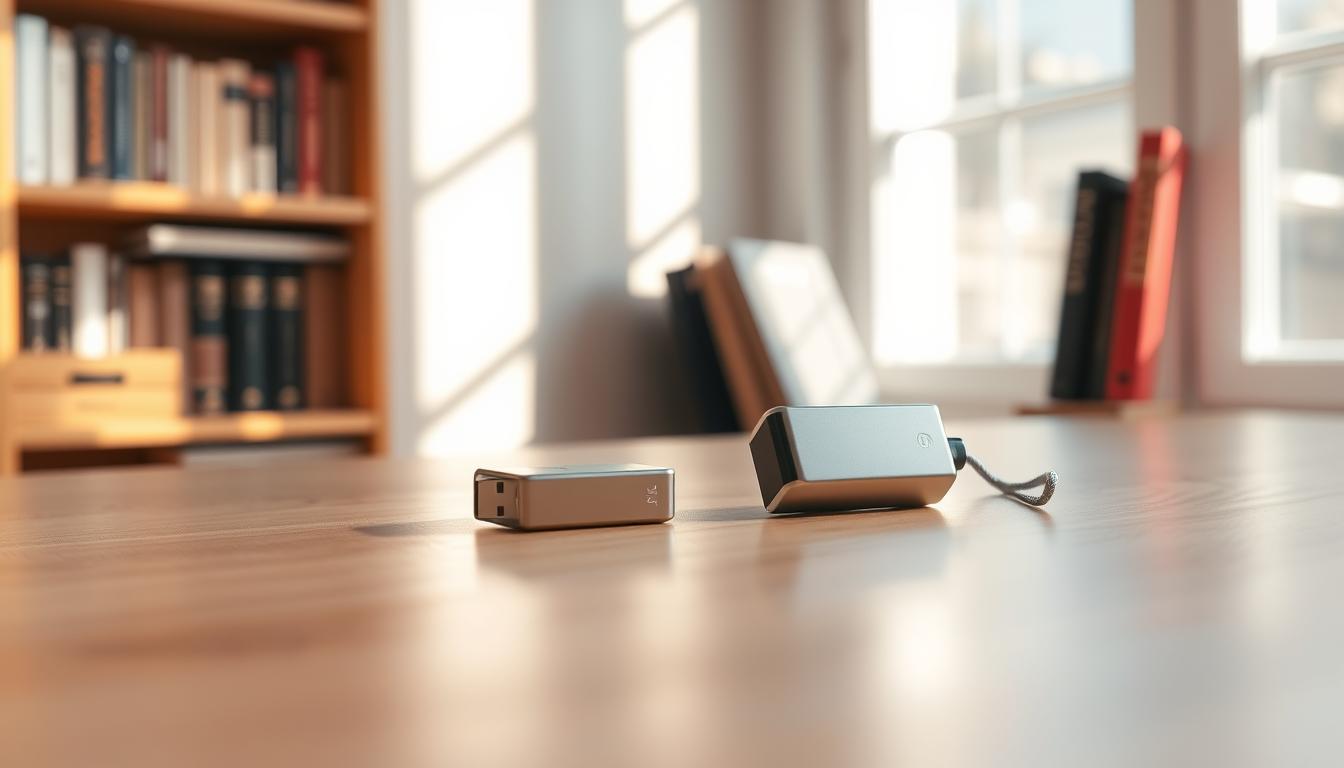
Saving files on a portable storage device is easy. It lets you move files between computers without hassle. First, just plug the device into your PC.
These slots are usually on the front or back of desktops or laptop sides. After plugging it in, your computer, like Windows, will find it. You can then access it through Windows Explorer or My Computer.
This simple step lets you save files on the device. It’s a great way to back up important data or share it between devices.
Understanding the Basics of USB Drives
Learning how USB drives work is key to using them well. A USB drive, also known as a flash drive or thumb drive, is a small storage device. It lets users store and move files between devices. It plugs into a computer’s USB port, adding extra space for files.
Key Features of USB Drivesinclude their small size, easy use, and work with most devices. Tech experts say, “USB drives have changed how we move data. They offer a handy and safe way to store and share files.”
The main job of a USB drive isdata storageandfile transfer. They have different sizes, from a few gigabytes to many terabytes. This makes them good for many uses, from small documents to big multimedia files.
In short, USB drives are a handy tool for moving or storing data safely. As tech keeps getting better, knowing how USB drives work is key for managing data well.
Why Use a USB Drive for File Storage?
Using a USB drive is a great way to keep your data safe. It’s a secure way to move files from one device to another. This helps prevent data from getting lost or stolen.
Portability and Convenience make USB drives very useful. They are small and easy to carry. You can take your important files with you wherever you go.
USB drives also help keep your data safe. You can encrypt your files or use a password-protected drive. This adds an extra layer of protection.
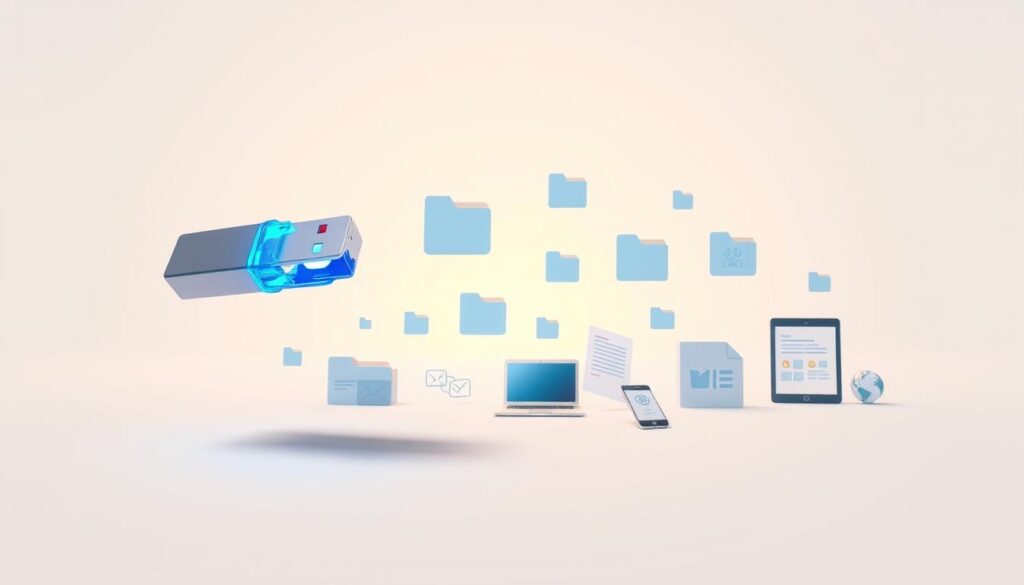
Experts say using USB drives is common and safe. They offer both convenience and security. This makes them a good choice for storing and transferring files.
Choosing a USB drive for your files has many benefits. It keeps your data safe and makes it easy to access on different devices.
How to Properly Format a USB Drive
To use a USB drive, you must format it properly. Formatting sets up a file system for storing and managing files.
You can format a USB drive using Windows Explorer or Disk Management. Both methods are easy and let you pick the right file system.
Choosing the Right File System
The file system you choose is key. You have options like NTFS, FAT32, and exFAT. Each has its own benefits and drawbacks.
NTFS supports big files and is secure but might not work with old devices. FAT32 is widely supported but has size limits. exFAT balances compatibility with file size support, making it a top pick for USB drives.
Think about your needs when picking a file system. Consider the devices you’ll use it with and the file sizes you’ll store. This makes sure your USB drive is ready for data storage and works with your devices.
Transferring Files to a USB Drive
Transferring files to a USB drive is easy. First, make sure the drive is connected to your computer.
After connecting, start the file transfer. Click on the file you want to transfer. Then, go to “File” and choose “Save As.” Pick your USB drive as the destination.
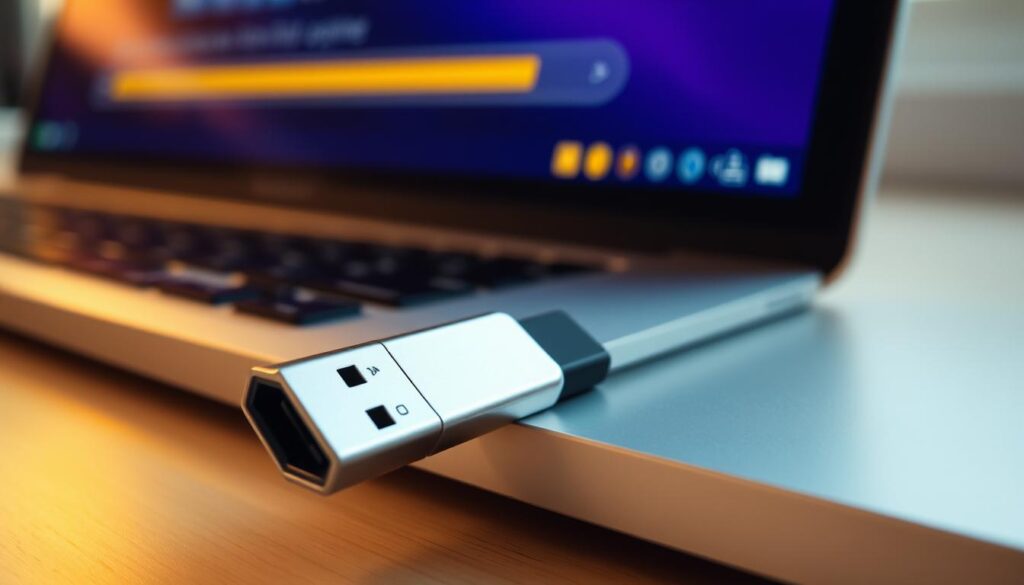
This way, you can save files on the USB drive. This makes them easy to carry and use on other devices. Just follow these steps to transfer your files.
Using a USB drive is great for moving data between computers. It’s perfect for sharing files or backing up important data.
Organizing Files on Your USB Drive
Managing files on a USB drive is key to staying productive. A messy USB drive can make finding files a chore. This can be both frustrating and time-wasting.
Setting up a good folder structure is the first step in file organization. Organizing your files into folders and subfolders makes them easy to find. For example, you might have folders for different projects, documents, or media.
Organizing your files on a USB drive saves time and keeps your data safe. A well-organized drive avoids the mess of scattered files. This is vital for large files or when using the drive on different devices.
To keep your file organization in check, regularly review and update your folder setup. This keeps your files easy to access and your USB drive working well.
Safely Ejecting Your USB Drive
Safely ejecting your USB drive is key to keeping your data secure. If you just pull it out without ejecting it, you might damage your data or the drive itself.
To safely eject a USB drive, use the Safely Remove Hardware option in Windows. This option helps you disconnect the drive right, lowering the chance of data loss or damage. As Microsoft says, “Using Safely Remove Hardware ensures that your device is properly stopped and can be safely removed.”
“The safe removal of hardware is an essential step in preventing data loss and corruption.”
Safely ejecting your USB drive does more than just prevent data loss. It also keeps your files safe and whole. By taking the time to eject your drive safely, you protect your files from harm.

Troubleshooting Common USB Drive Issues
If your USB drive isn’t working right, there are steps to find and fix the problem.
First, check if the USB drive is properly connected to your computer. Sometimes, a loose connection is the issue. Make sure it’s plugged in well.
Another common problem is insufficient storage capacity. If your drive is full, you can’t save files. You might need to delete files or use a bigger drive.
Also, the file system might be wrong or not work with your computer. Reformatting the USB drive could help, but it will erase all data. So, be careful with this step.
To fix file saving issues, check the USB drive’s compatibility with your device. Also, make sure it’s formatted right for file transfers.
By trying these steps, you can often fix common USB drive problems. This way, you can start transferring files again smoothly.
Keeping Your USB Drive Secure
In today’s world, keeping your USB drive safe is key. These devices hold important data, making them a target for hackers.
Using encryption is a smart move. It scrambles your data, keeping it safe from prying eyes. This is super important if your drive gets lost or stolen.
Password protection is another great way to keep your data safe. A password ensures that even if someone finds your drive, they can’t access your files.
Using both encryption and a password makes your USB drive very secure. This combo keeps your files safe, whether they’re personal or work-related.
Don’t forget to update your USB drive’s software and firmware regularly. Updates often fix security holes, keeping your data safe from hackers.
By following these tips, you can make your USB drive much more secure. This protects your data from unauthorized access and keeps it safe from breaches.
Using USB Drives for Backup
USB drives are a handy way to backup your files. They add an extra layer of security. This means your data is safe in case something goes wrong with your computer.
Benefits of Using USB Drives for Backup
Using a USB drive for data backup is easy. Just plug it in, move your files over, and you’re set. It’s great for people who need to backup small to medium-sized files.
To make the most of your USB drive for file storage, update your backups often. This keeps your latest files safe. Also, keep your USB drive in a safe spot to avoid damage or loss.
Adding a USB drive to your data backup plan gives you peace of mind. You’ll know your important files are secure.
USB Drive Compatibility with Devices
How well your USB drive works with different devices is very important. It helps make sure you can move data easily. Always check if your USB drive fits with the device you plan to use it with.
Understanding Device Compatibility is key. Most modern devices work well with standard USB drives. But, older devices or those with special operating systems might have issues.
For example, some USB drives are made for Windows and might not work right with macOS. Checking the compatibility beforehand can save time and prevent data loss.
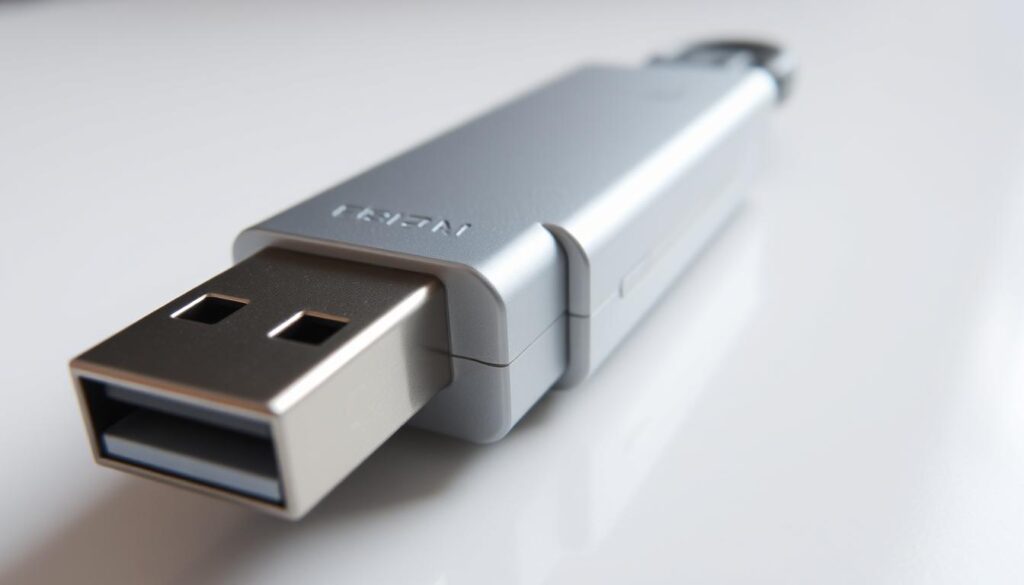
To make sure it works, check the device’s specs or the user manual. Also, using a USB drive that works with many operating systems is good for using it on different platforms.
Tips for Ensuring Compatibility include using file systems like FAT32 or exFAT for your USB drive. Also, keep your USB drive’s firmware up to date. This helps it work better with newer devices.
Future of USB Drives
The future of USB drives is exciting, thanks to new tech and trends in storing data. We’ll see bigger storage, faster speeds, and better security. These changes will make USB drives more useful than ever.
New trends in data storage will make USB drives more versatile and safe. As we need more ways to store and share data, USB drives will be key. They’ll help us meet these growing needs.
With new tech, USB drives will get faster, hold more data, and be more secure. This means we can easily move and store big files. Our data will stay safe and sound.