
Accessing data on memory cards is key in today’s world. Many devices, like computers, phones, and tablets, have built-in slots. Or they need a separate device to read these cards.
An SD Card Reader is a simple way to move data from a memory card to your device. This article will show you how to read SD cards on different devices. You’ll get tips and tricks to do it well.
Knowing how to read SD cards is very useful, whether on a computer or a mobile device. We’ll look at various methods and tools. This will make it easier for you to get to your data.
What is an SD Card Reader?
An SD card reader helps move data from your SD card to your computer. It’s a tool that lets you read data from an SD card on your computer.
Many laptops have an SD card reader built-in. You can find it on the side of the laptop. But, not all devices have this feature. If your device doesn’t, you can use an external SD card reader.
An external SD card reader connects to your computer via a USB port. It’s great for devices without a built-in reader. It makes transferring data from your SD card easy.
Using an SD card reader is simple. Just put your SD card into the reader. Your computer will see it as an external drive. Then, you can access your files.
Benefits of Using an SD Card Reader
An SD card reader is a must-have for anyone who wants to manage their SD card data well. It makes transferring files and expanding storage easy. With it, you can move data like photos and videos between devices without hassle.
One big plus of an SD card reader is that it lets you add more storage to your device. You can store more photos, videos, and apps on your SD card. This is great for devices that don’t have much storage space.
SD card readers also help with SD card troubleshooting. If your SD card isn’t working right, a reader can help you figure out and fix problems. It lets you access your card’s data on another device.
Also, SD card readers work with many devices, like computers, laptops, and some phones. This makes sharing data between devices easy. It boosts your productivity and makes things more convenient.
In short, using an SD card reader offers many benefits. It makes data transfer easy, adds more storage, and helps with troubleshooting your microSD card. Adding an SD card reader to your routine makes managing data smoother and more efficient.
How to Choose the Right SD Card Reader
To pick the right SD card reader, think about the SD card type and the device it will connect to.
When looking at SD card readers, several things matter. First, compatibility is key. Make sure the reader works with your SD card, like SD, SDHC, or SDXC.
Think about the device you’ll use it with. For laptops or desktops, choose a reader with a USB connection. USB 3.0 or higher is best for quick data transfer.
The transfer speed of the reader is also important. If you move big files often, a fast reader (UHS-I or UHS-III) will save time.
Don’t forget about the reader’s build quality and durability. A sturdy reader will last longer and work better.
Popular Brands of SD Card Readers
Some brands stand out in the SD card reader market for their dependability and performance. Sandisk is one such brand, famous for its top-notch SD card adapters and microSD card readers.
Sandisk has a variety of SD card readers for different needs. They range from simple, small readers to advanced ones with fast transfer speeds. Their products work well with many devices, making it easy to move data between SD cards and computers or other devices.
When picking an SD card reader, look at compatibility, speed, and how long it lasts. Customer reviews can give you a good idea of how well a model works and how reliable it is.
Other brands also make high-quality SD card readers. They offer many choices for buyers. By looking at what each model offers, its price, and what others say about it, you can choose the right SD card reader for you.
How to Use an SD Card Reader
SD card readers make it easy to move data between your SD card and computer. They are very useful for anyone who uses SD cards.
To begin, make sure you have the right reader for your SD card. Most readers work with SD, SDHC, and SDXC cards. After checking, just put your SD card into the reader.
Using an SD Card Reader on a Computer
To see what’s on your SD card on a computer, just follow these steps:
1. Plug the SD card reader into your computer’s USB port. Most computers have USB ports that support SD card reader speeds.
2. Put your SD card into the reader. Make sure it’s in right and push it in until it clicks.
3. Open File Explorer on Windows or Finder on macOS. Your SD card will show up as an external drive. You can then access its files like any other drive.
Using an SD card reader on a computer is simple. It helps you manage your files well. Whether you’re moving photos from a camera or backing up your phone, an SD card reader is a must-have tool.
By following these steps, you can easily use an SD card reader. It’s a great tool for anyone who works with SD cards.
SD Card Reader vs. Built-in Readers
Choosing between an external SD card reader and a built-in one depends on several factors. These include convenience, speed, and compatibility. Laptops and cameras often have built-in SD card readers for easy data transfer. But, not all devices have this feature, so an external reader is needed.
An external SD card reader is flexible. It can be connected to any device with a compatible port, like USB. This is great for devices without built-in readers, like some ultrabooks or smartphones. You can also pick an external reader based on your needs, like faster speeds or support for multiple SD card formats.
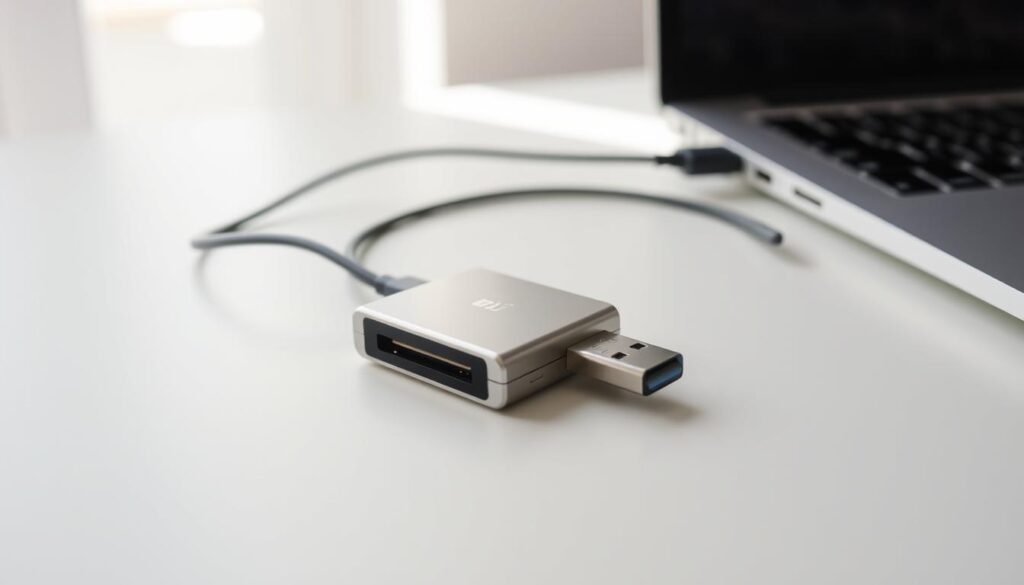
Built-in SD card readers are convenient because they’re part of the device. They save you from needing an extra accessory. Tech fans say built-in readers make transferring data from an SD card easier. But, their speed and functionality can be limited by the device’s hardware.
When choosing between an external SD card reader and a built-in one, think about a few things:
Key Considerations
Compatibility: Make sure the reader works with your SD card type.
Speed: If you move big files often, a quicker reader is better.
Convenience: Built-in readers are handy, but external ones offer more flexibility.
In summary, both external SD card readers and built-in ones have their pros and cons. Your choice should depend on your device, how often you transfer data, and what you need in terms of speed and compatibility.
SD Card Formats Supported by Readers
SD card readers can handle many formats like SD, SDHC, and SDXC. This makes them very useful for different needs. They let users access data from various devices.
The SD format is the first standard for SD cards, with a max of 4GB. SDHC cards can hold more, from 4GB to 32GB. SDXC cards go even further, supporting up to 2TB.
When picking an SD card reader, make sure it fits your card’s format. For example, if you have an SDXC card, the reader must support SDXC. Most readers today can handle older formats like SD and SDHC too.
Many readers also work with microSD cards, which are found in mobile devices. Some readers come with adapters for microSD cards. This makes it easy to move data between devices.
Knowing what formats your SD card reader supports can help with troubleshooting. If your reader doesn’t match your card’s format, you might face data access problems.
Maintaining Your SD Card Reader
Keeping your SD card reader in good shape is easy and important. To make sure it lasts longer, just follow a few easy steps.
First, keep your SD card reader clean. Dust and dirt can block connections or harm your SD cards. Use a soft cloth to wipe the outside and compressed air for the slot.
Storage conditions matter too. Don’t let your reader get too hot, wet, or stressed. Store it safely in a case when not using it.
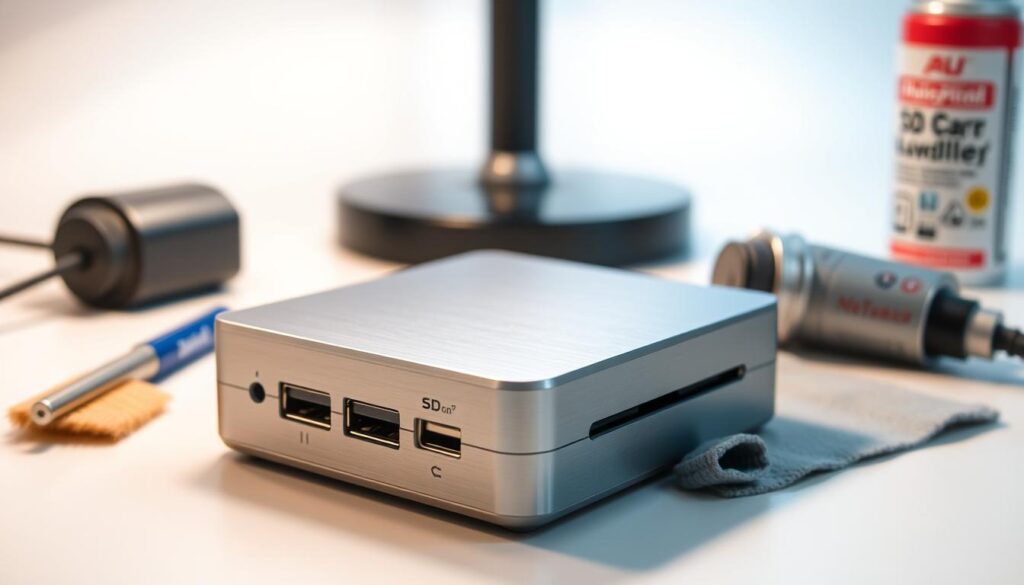
Be gentle when handling your SD card reader. Don’t push SD cards too hard, as it can hurt the card or the slot. Gently push the card in until it clicks, and press it to take it out.
By taking these simple steps, your SD card reader or memory card reader will work well. You’ll always have access to your data without any trouble.
Understanding SD Card Speed Class
SD card speed class is a key factor that shows the minimum write speed of the card. It’s very important for tasks that need fast data transfer, like video recording or storing lots of data quickly.
SD cards come in different speed classes, like Class 2, Class 4, Class 6, and Class 10. The higher the class, the faster the write speed. For example, a Class 10 SD card can write at least 10 MB/s. This makes it good for tasks like recording 1080p videos.
When using an SD card adapter with a microSD card, remember that the microSD card’s speed class matters most. It affects how well your device works, whether it’s a camera, smartphone, or other gadgets. The speed class ensures your device can handle the data transfer rates it needs.
Each speed class meets different needs. For example, Class 2 is okay for regular video recording. But, for high-definition video or burst mode photography, you need Class 10 or higher. Knowing these classes helps you pick the right SD card or microSD card for your needs.
There are also other speed classes like UHS (Ultra High Speed) for even quicker data transfer. UHS-I and UHS-III are examples. They offer speeds much faster than the standard classes.
Understanding SD card speed classes helps users make better choices when picking an SD card or SD card adapter for their devices. This ensures they get the performance they need for their specific tasks.
Future Trends in SD Card Readers
SD card readers are changing how we use digital content. They’re getting faster and more useful. This meets our need for more storage and quicker data moves.
New SD card readers are making big leaps forward. They’re focusing on speed and performance. Now, they support the latest SD Express, which is way faster than before.
There’s also a push for compatibility and versatility. Modern readers work with more devices. This includes laptops, desktops, and some phones, thanks to USB-C and Thunderbolt 3. It’s easier to use SD cards with different devices.
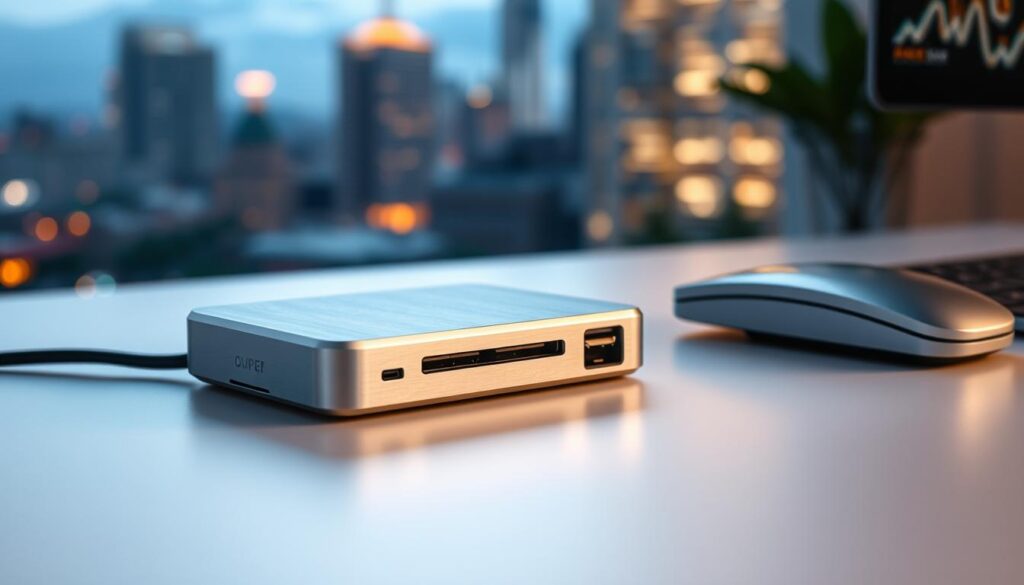
Another trend is adding troubleshooting and maintenance features. Some readers now have built-in tools for fixing SD card problems. This makes using them better for everyone.
Technologies like USB 3.2 Gen 2 and PCIe are being used more. They help move data faster. This means you can quickly share big files on SD cards.
Looking ahead, SD card readers will keep being key for data management. They’ll get even better, meeting our changing needs. This will make them more efficient and easy to use for everyone.
Conclusion and Recommendations
Understanding the role of an SD card reader is key to accessing your memory card data. Whether you use a dedicated reader or one built into a device, knowing the pros and cons is important. This helps you make smart choices.
When picking an SD card reader, look at compatibility, speed, and the brand’s reputation. Brands like Lexar, SanDisk, and Anker are known for their reliable products. They support different SD card formats and speeds.
To keep your SD card reader in top shape, clean the connectors and update drivers when needed. Knowing your SD card’s speed class also helps improve data transfer and storage.
By following these tips, you’ll ensure smooth data transfer and storage. This way, you’ll get the most out of your SD card reader and memory cards.